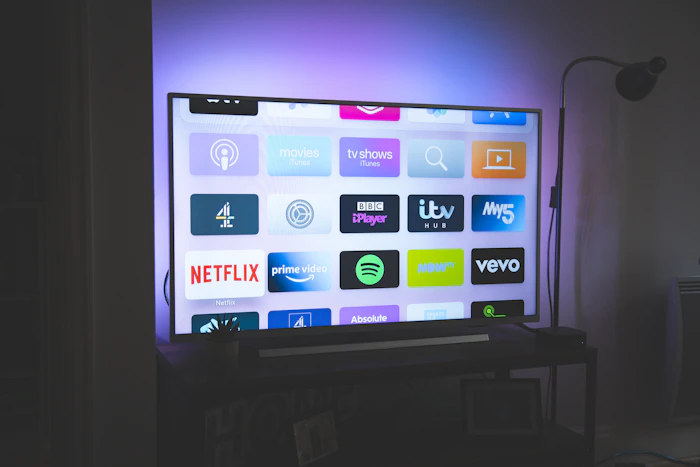
Setting up IPTV on a Smart TV can be straightforward once you understand the difference between an IPTV service, an IPTV application and the connection details needed to access your chosen provider.
The process generally involves checking your television's compatibility, installing a suitable IPTV player, entering the connection information supplied by your provider and testing the result.
In this guide, we'll explain each step in simple terms so you can understand what to do before starting.
What You'll Learn
What You Need Before Getting Started
Before installing an IPTV application, make sure you have the basic equipment and information needed to complete the setup. Having everything ready can save time and help avoid unnecessary configuration problems.
A Smart TV
A television with internet connectivity and access to a compatible application store or installation method.
Internet Access
A stable broadband connection. Ethernet or a strong Wi-Fi connection can both be suitable.
IPTV Player
An application compatible with your television's operating system and your provider's connection format.
Connection Details
The playlist URL or login credentials provided by your authorized IPTV service.
Make sure you use a legitimate service that is authorized to distribute the content you access. An IPTV player alone does not provide television channels or broadcasting rights.
Check Your Smart TV Compatibility
Not every Smart TV uses the same operating system or supports the same applications. Before choosing a player, identify your television's platform and check which applications are available for your model.
Samsung Smart TVs
Samsung televisions commonly use the Tizen operating system. Open the television's Apps section and search for an IPTV player that supports your specific model and software version. Application availability can vary by model and region.
LG Smart TVs
Many LG Smart TVs use webOS. Open the LG Content Store or Apps section and check whether your preferred IPTV player is available for your television.
Android TV and Google TV
Android TV and Google TV devices generally provide access to the Google Play Store. Search for a compatible IPTV player and review its requirements before installation.
| TV Platform | Where to Check | Important Note |
|---|---|---|
| Samsung | Samsung Apps | Check Tizen compatibility |
| LG | LG Content Store | Check webOS compatibility |
| Android TV | Google Play Store | Check Android requirements |
| Google TV | Google Play Store | Check device support |
If your television does not support the application you want, an external Android TV device or another compatible streaming device may be an alternative.
You can also check oursupported devices guidefor more information about device compatibility.
Choose an IPTV Player
An IPTV player is an application that reads and organizes compatible television streams or playlists. It provides the interface used to browse available content.
It is important to understand that an IPTV player and an IPTV subscription are two different things. The player provides the interface, while the service supplies the authorized content and connection information.
The Application
Provides the interface for loading playlists, organizing channels and accessing compatible streams.
The Provider
Supplies the authorized content, subscription details and connection information required by the player.
What should you look for?
- Compatibility with your Smart TV operating system.
- Support for the playlist or login format supplied by your provider.
- A simple and easy-to-navigate interface.
- Clear application instructions and support documentation.
- Transparent pricing and application terms.
Before installing any application, review its official information and confirm that it supports your television.
Install Your IPTV Application
Once you have identified a compatible player, the next step is installing it on your Smart TV. The exact menus can differ between television manufacturers and software versions.
Connect Your Television to the Internet
Open your television's network settings and connect through Wi-Fi or Ethernet. Confirm that the connection is working.
Open the Application Store
Navigate to the Apps section, Google Play Store or relevant application marketplace on your television.
Search for Your Chosen IPTV Player
Enter the application's name and check its compatibility and requirements before installing.
Install and Open the Application
Follow the on-screen instructions, wait for installation to finish and launch the application.
Prefer official application stores and the developer's published instructions. Avoid unknown downloads or installation files from untrusted websites.
Configure Your IPTV Service
After installation, the application may ask you to add a playlist or enter login information. Use the exact connection details supplied by your IPTV provider.
Option 1: M3U Playlist URL
An M3U playlist is a file or URL that contains references to media streams and related information. Some IPTV players allow you to add a playlist by entering its URL.
If your provider supplies an M3U URL, open the playlist configuration section in your player and follow its instructions for adding the address.
Option 2: Xtream-Compatible Login
Some players support a login method commonly referred to as Xtream Codes. It typically requires a server address, username and password supplied by the service provider.
Select the relevant login option in your player and enter the supplied details carefully. Make sure there are no extra spaces or typing mistakes.
Your playlist URL and login credentials may provide access to your subscription. Do not publish them or share them with unknown people.
Once your information has been accepted, the application may need some time to load and organize the available content. The exact process depends on the player and service.
Test Your IPTV Connection
Before settling down to watch, take a few minutes to confirm that everything is working as expected.
Setup Checklist
If everything works, your basic setup is complete. If something does not work, check the troubleshooting section below before changing several settings at once.
Common Setup Problems and Solutions
Even with a compatible television and application, you may encounter occasional setup problems. Here are some common situations and the first checks worth performing.
1. The IPTV Application Is Not Available
Your television model, region or operating system may not support the application.
What to check:Verify the application's supported platforms and check whether your TV has a compatible software version.
2. The Playlist Does Not Load
An incorrect URL, typing error or unsupported playlist format can prevent the application from loading content.
What to check:Confirm that the playlist address is correct and that your player supports the supplied format.
3. Login Details Are Rejected
Incorrect credentials, an expired subscription or an incorrect server address may cause authentication problems.
What to check:Carefully re-enter your details and contact your provider if the problem continues.
4. Video Keeps Buffering
Weak Wi-Fi, network congestion, device limitations or temporary server issues can affect playback.
What to check:Test your internet connection, move closer to your router or try Ethernet if available.
5. The Application Freezes
Software bugs, limited device resources or outdated application versions can affect performance.
What to check:Close and reopen the application, restart your TV and check for available software updates.
For more detailed advice, visit ourfrequently asked questionsor explore oursetup guide.
Tips for a Better Viewing Experience
A successful IPTV setup is not only about installing an application. Your home network, television and software settings can all influence the overall experience.
Use Ethernet When Practical
A wired Ethernet connection can provide a more consistent connection than Wi-Fi in some home environments, especially when the television is far from the router.
Keep Your Television Updated
Check for operating system and application updates. Updates can include compatibility improvements, bug fixes and security enhancements.
Avoid Unnecessary Background Activity
Other devices downloading large files or streaming video can compete for available bandwidth. Check your network usage if playback becomes inconsistent.
Use a Compatible Application
A player designed for your television's operating system is generally a better starting point than attempting to install unsupported software.
Protect Your Account
Keep subscription credentials private, use trusted applications and follow the security recommendations provided by your service.
Frequently Asked Questions
Here are answers to common questions beginners have when setting up IPTV on a Smart TV.
01Can I install IPTV directly on my Smart TV?+
Many Smart TVs support IPTV player applications through their application stores. Availability depends on your television model, operating system, region and the specific application.
02Do I need an Android box to use IPTV?+
Not necessarily. If your Smart TV supports a compatible IPTV player, you may be able to use it without an additional device. An external streaming device can be an alternative when your television does not support the application you want.
03How do I get my IPTV login details?+
Your IPTV provider should supply the connection information required by its service. Depending on the provider and player, this may include an M3U playlist URL or Xtream-compatible login details.
04Why is my IPTV application not working?+
Possible causes include an incorrect playlist URL, invalid credentials, an expired subscription, an internet connection problem, an incompatible application or a temporary provider-side issue.
05Can I use the same IPTV application on Samsung and LG TVs?+
Not every IPTV application is available on every television platform. Check the application's compatibility information and your TV's application store before installing it.
06Does IPTV require a fast internet connection?+
IPTV uses an internet connection to deliver video. The bandwidth you need depends on video resolution, stream quality, network congestion and whether other devices are using the same connection.
Getting Started with IPTV Doesn't Have to Be Complicated
Setting up IPTV on a Smart TV usually comes down to a few important steps: checking compatibility, choosing a suitable player, installing the application and entering the correct connection details.
Take your time with each step and use the official instructions provided by your television manufacturer, application developer and authorized IPTV provider.
Once your setup is complete, you can enjoy a more organized television experience using a compatible application and service.
EXPLORE SUPPORTED DEVICES ↗